Skip to content

Exacq

Support Portal CMS

How to Open Client Instances Automatically on Login

If you’ve got a single monitor viewing station you may choose to run the client upon login during the install process of the exacqVision client. If you want to change that behavior to enable or disable it after you’ve already installed the client, just download the client installer from our website and run it again so you can change the option. 

In cases where you may have multiple monitors and want to open several client instances, usually one for each monitor, we provide the following Knowledge Base articles on creating the shortcuts needed. Those shortcuts allow a user to run them to open the client to a specific saved view or event monitoring profile.

Opening exacqVision Client on Separate Monitors Using Short Cuts with Client 9.4 and Higher
Opening exacqVision Client on Separate Monitors Using Short Cuts with Client 9.2 and Earlier

To run the client shortcuts automatically upon login you will first need to have followed one of the articles above and then proceed with the following steps.

<br>

Windows

On windows systems you will place either the XDV file created for client 9.4 and higher, or the shortcut created for client 9.2 and earlier, into the Windows Startup folder. There are two different locations for this.

All users:      %SystemDrive%\ProgramData\Microsoft\Windows\Start Menu\Programs\Startup

Single user:  %SystemDrive%\Users\%Username%\AppData\Roaming\Microsoft\Windows\Start Menu\Programs\Startup

If placed in the first path listed above, the clients will open automatically for any user that logs into the system. If placed in the second path listed above, they will only open for the user account you replace %Username% with. 

Now logging back into the machine with this user account should open the client instances based on the settings in your XDV files. 

<br>

Linux

Open a Terminal prompt.

Move the XDV files for client 9.4 and higher, or the XML created for client 9.2 and earlier, to the place you’d like to store them on the system. Training in the use of Ubuntu/Linux or the Terminal is outside the scope of exacqVision support if you experience problems with these steps. 

To move a file, type:

  sudo mv ˂FilePath˃/˂FileName˃  

Then you will need to change the permissions of the XDV files, type:

  sudo chmod 766 ˂FilePath˃/˂FileName˃     (Ex. sudo chmod 766 /home/admin/Desktop/Monitor1.xdv )

In the following steps you will need to specify the name of the user account. In each example, replace ‘$USER’ with the name of the user account you are configuring. For example, if you created a user account named ‘securityguard’, you would replace ‘$USER’ in each command with ‘securityguard’. 

Change your directory to the home directory of the user account. If you are targeting a Kiosk user account you will either need to elevate to root user or change the permissions on the directories as you go. 

  sudo chmod 777 /home/$USER  

  cd /home/$USER 

  sudo chmod 777 .config  

  cd .config  

  sudo chmod 777 autostart  

  cd autostart  

  ls  


Typing ‘ls’ above will list the files in the directory you’ve entered. Look for the file named ‘evc.desktop’. This file will only exist if you chose to start the client when logging in during your install. If it does not exist, create a new one by typing:

  sudo touch evc.desktop  

  sudo chmod 766 evc.desktop  


Now edit the ‘evc.desktop’ file by typing:

  sudo gedit evc.desktop  

When opened the file will resemble the following:
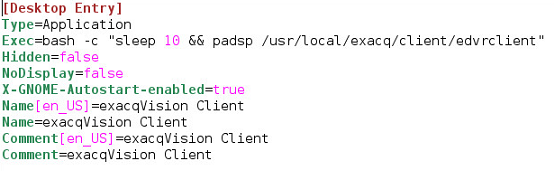
If your file is empty, it is either because you just created it, or you made a typo. In Linux if you try to open a file that does not already exist it will attempt create it.

Change the ‘Exec’ line to the following:

Exec=bash -c "sleep 5 && padsp /user/local/exacq/client/edvrclient -F˂FilePath˃/˂FileName˃"  

In the following example, the XDV file was placed inside the client install directory. There should be no space between the -F option and the file path. 

Ex. Exec=bash -c "sleep 5 && padsp /user/local/exacq/client/edvrclient -F/usr/local/exacq/client/Monitor1.xdv"

From this point you need to create a new evc#.desktop file using the steps above for each XDV file you have. For simplicity, number them in order… evc1.desktop, evc2.desktop, etc.

Now logging back into the machine with this user account should open the client instances based on the settings in your XDV files. 

<br>

Published July 24, 2018By Bhargav Atturu
Categorized as User Guides, exacqVision Client, Categories Tagged KB-00096-96-210203, 743, Guest, Client Login, Open Client Automatically, Client Opens On Login

Post navigation

Previous post

Opening exacqVision Client on Separate Monitors Using Short Cuts with Client 9.4 and Higher

Next post

Updating an exacqVision System Without Internet Connection Using Web Server

Recent Posts

  • Exacq Data Preservation, Transfer & Offload – Important Information
  • Creating Low Res Sub Streams for Exacq Mobile Application
  • Remote Connectivity for Desktop Client – What to Expect
  • Preventing Conflicting User Authentication Types (LDAP/AD vs OAuth) in Enterprise Manager
  • Axis Q1800-LE-3 Adds an Additional Stream in the Client

Archives

  • March 2026
  • February 2026
  • January 2026
  • December 2025
  • November 2025
  • October 2025
  • September 2025
  • August 2025
  • July 2025
  • June 2025
  • May 2025
  • April 2025
  • March 2025
  • February 2025
  • January 2025
  • December 2024
  • November 2024
  • October 2024
  • September 2024
  • August 2024
  • July 2024
  • June 2024
  • May 2024
  • April 2024
  • March 2024
  • February 2024
  • January 2024
  • December 2023
  • November 2023
  • October 2023
  • September 2023
  • August 2023
  • July 2023
  • June 2023
  • May 2023
  • April 2023
  • March 2023
  • February 2023
  • January 2023
  • December 2022
  • November 2022
  • October 2022
  • September 2022
  • August 2022
  • July 2022
  • June 2022
  • May 2022
  • April 2022
  • March 2022
  • February 2022
  • January 2022
  • December 2021
  • November 2021
  • October 2021
  • September 2021
  • August 2021
  • July 2021
  • June 2021
  • May 2021
  • April 2021
  • March 2021
  • February 2021
  • September 2020
  • June 2020
  • May 2020
  • March 2020
  • December 2019
  • November 2019
  • October 2019
  • August 2019
  • July 2019
  • June 2019
  • May 2019
  • April 2019
  • March 2019
  • February 2019
  • January 2019
  • December 2018
  • November 2018
  • October 2018
  • August 2018
  • July 2018
  • June 2018
  • May 2018
  • April 2018
  • March 2018
  • February 2018
  • January 2018
  • December 2017
  • November 2017
  • October 2017
  • July 2017
  • May 2017
  • April 2017
  • March 2017
  • February 2017
  • January 2017
  • December 2016
  • November 2016
  • October 2016
  • September 2016
  • August 2016
  • July 2016
  • June 2016
  • April 2016
  • March 2016
  • February 2016
  • January 2016
  • December 2015
  • November 2015
  • October 2015
  • September 2015
  • August 2015
  • July 2015
  • June 2015
  • May 2015
  • April 2015
  • March 2015
  • February 2015
  • January 2015
  • December 2014
  • November 2014
  • October 2014
  • September 2014
  • August 2014
  • July 2014
  • June 2014
  • May 2014
  • April 2014
  • March 2014
  • February 2014
  • January 2014
  • December 2013
  • November 2013
  • October 2013
  • September 2013
  • August 2013
  • July 2013
  • May 2013
  • April 2013
  • March 2013
  • February 2013
  • January 2013
  • December 2012
  • November 2012
  • October 2012
  • September 2012
  • August 2012
  • June 2012
  • May 2012
  • April 2012
  • February 2012
  • December 2011
  • November 2011
  • October 2011
  • September 2011
  • August 2011
  • June 2011
  • May 2011
  • April 2011
  • March 2011
  • February 2011
  • January 2011
  • December 2010
  • November 2010
  • October 2010
  • September 2010
  • August 2010
  • July 2010
  • June 2010
  • May 2010
  • April 2010
  • March 2010
  • February 2010
  • January 2010
  • December 2009
  • November 2009
  • October 2009
  • September 2009
  • August 2009
  • July 2009
  • June 2009
  • May 2009
  • April 2009
  • March 2009
  • February 2009
  • January 2009

Categories

  • Case Studies
  • exacqVision Client Linux
  • S2
  • Software Categories
  • Sell Sheets
  • exacqVision Client Windows msi
  • AMAG-G4S
  • exacqVision Server Edge
  • Presentations
  • exacqVision Client Windows x64
  • evSentry
  • What's New?
  • Storage Calculator
  • exacqVision Client MacOS
  • MASterMind
  • Product Lifecycle
  • Software Downloads
  • exacqVision Client Windows
  • Exacq Legacy Camera Support
  • FAQs
  • Software Categories
  • exacqVision Client Windows msi x64
  • Archive Sync
  • Solutions
  • Software Categories
  • exacqVision Client MacOS arm64
  • Transacq Installers
  • Announcements
  • Software Categories
  • exacqVision Enterprise Windows
  • VideoGuard Installers
  • Latest Announcements
  • Software Categories
  • exacqVision Enterprise Linux
  • evLPR – Hikvision
  • Notifications
  • Software Categories
  • Installation Software
  • Software Landing Page
  • Software Categories
  • exacqVision Webservice Linux
  • Software Categories
  • exacqVision Server Windows
  • exacqVision Webservice Windows
  • 64-bit Hybrid Capture Card Installers
  • exacqVision Server Linux
  • exacqVision Webservice Windows x64
  • exacqVision Webservice M-Series
  • exacqVision Server Windows x64
  • exacqVision Webservice Linux x64
  • exacqVision Server M-Series
  • exacqVision Server Linux x64
  • Lenel
  • exacqVision Client M-Series
  • Sales Materials
  • exacqVision Client Linux x64
  • DSX
  • exacqVision Server Edge
  • ACTiPI
  • Knowledge Support
  • Technical Advisory Bulletins
  • Cloudvue
  • Cloudvue Cameras
  • Exclude from Global Search
  • Video Library
  • User Guides
  • Configuration
  • Plugin
  • Quick Start Guides
  • Demo
  • ArchivePI
  • Release Notes
  • Cloudvue Gateway
  • Log Level
  • Verbose
  • Documentation
  • exacqVision EDGE
  • Highlighted
  • Data Sheets
  • Installation
  • ArecontPI
  • Highlighted Video Guides
  • exacqVision Enterprise
  • Cloudvue Access Control
  • Warning
  • Support
  • Integrations
  • Marketing
  • exacqVision Client
  • Error
  • Other
  • AxisPI
  • exacqVision Server
  • Critical
  • exacqVision Mobile
  • Youtube Video Library
  • Categories
  • exacqVision Webservice
  • Products
  • exacqVision Hardware
  • Uncategorized
  • exacqVision Integrations
  • Logs
  • Core
  • DahuaPI
  • EventPI
  • ExportPI
  • EvtLogPI
  • GenericCameraPI
  • HikVisionPI
  • Illustra3PI
  • IpCamDetectPI
  • IQeyePI
  • LogPI
  • NotifyPI
  • OnvifnvcPI
  • Other
  • PanasonicPI
  • PosPI
  • PsfPI
  • SamsungPI
  • StreamPI
  • StretchPI
  • SysMgmtPI
  • tDVRPI
  • UpdatePI
  • VivotekPI
  • XdvPI

Meta

  • Log in
  • Entries feed
  • Comments feed
  • WordPress.org
Exacq
Proudly powered by WordPress.